Roles & Authorization
Learn how roles and permissions work across your workspace and projects.
Cradle uses role-based access control to restrict who can see and do what in your workspace and projects. Roles are assigned at two levels: the workspace level and the project level: broad access can be managed across your organization workspace, while specific permissions can be tailored per project. This two-tier system means you can invite someone to your workspace without automatically giving them access to every project in the workspace. If a user accesses Cradle through the API, the same role-based permissions apply.
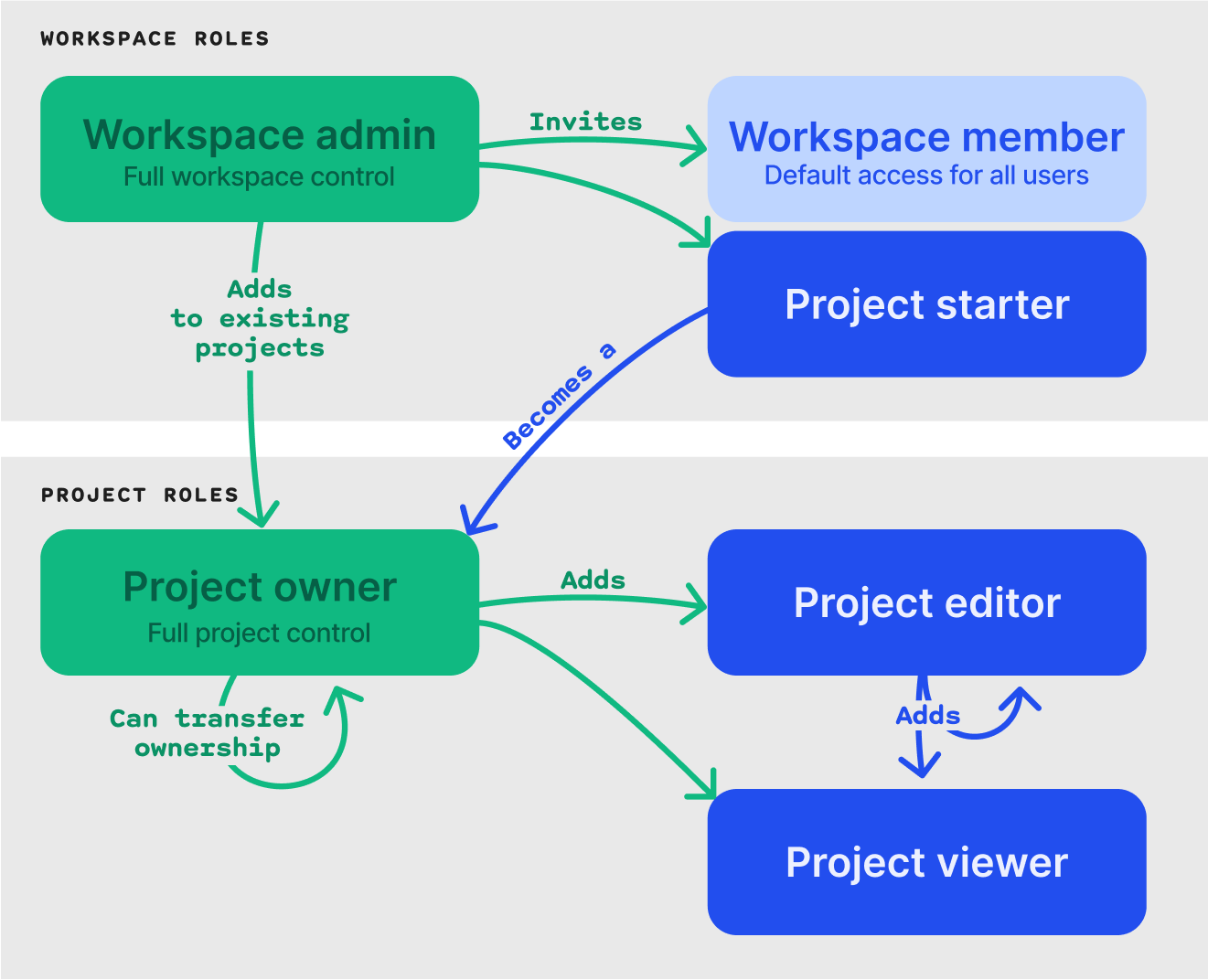
Cradle roles build on the workspace and authentication setup described in Workspace & Authentication. If you haven't set up your workspace yet, start there first.
Workspace roles
Every user in Cradle is assigned a workspace role, Workspace Admin, Project Starter, or Workspace Member, which determines what they can do across the workspace.
Workspace Admin
Workspace Admins have full control over the workspace. This role is typically assigned to a primary contact person at your organization.
As a Workspace Admin, you can:
- Invite and remove workspace members
- Assign and change workspace roles for other members
- Configure SSO, domains, and authentication settings
- Create and manage workspace wide data tables and views
- Archive and unarchive tables
- Full access to all projects
- Everything a Project Starter can do
Project Starter
The Project Starter role allows you to create and administer projects. When a Project Starter creates a project, they automatically also become the Project Owner for that project (see Project roles below), and nobody else has access to the project until the Project Starter shares the project with other workspace members. Workspace Members can be added individually or global Workspace Members can be applied, i.e. "All Workspace Members can edit".
As a Project Starter, you can:
- Create new projects in the workspace
Workspace Member
All users in the workspace are Workspace Members by default. This role provides baseline access to the workspace but does not include project access.
As a Workspace Member, you can:
- View the list of projects you've been added to
- Access projects where you've been assigned a project role
- View workspace-level information
Workspace Members cannot create projects, manage other members, or access projects they haven't been explicitly added to.
Project roles
Project roles control what a user can do within a specific project. A workspace member won't have access to a project unless they've been explicitly added to it. Each project manages its own roles independently, so a user can be an editor on one project and a viewer on another.
Project Owner
The Project Owner has full control over a project, including managing who else can access it. The person who creates a project automatically becomes its Project Owner (see Project Starter above).
As a Project Owner, you can:
- Add and remove project members
- Assign and change project member roles
- Transfer project ownership to another workspace member (there can only be one project owner)
- Archive the project
- Everything a Project Editor can do
Project Editor
Project Editors have full read and write access to a project's data and workflows. This is the right role for team members actively working on experiments and analysis.
As a Project Editor, you can:
- Add and remove project members (except for the Project Owner)
- Assign and change project member roles (except for the Project Owner)
- Create, edit, and archive rounds
- Run tasks
- Import and manage data
- Everything a Project Viewer can do
Project Viewer
Project Viewers have read-only access to a project. This role is useful for stakeholders who need to follow progress or review results without making changes.
As a Project Viewer, you can:
- View project information and settings
- View rounds and their details
- View tasks and their results
- View artifacts and reports
Managing access
Inviting users to the workspace
Users need to be explicitly invited to the workspace before they can be added to any projects. Workspace Admins can invite new members through the workspace settings by opening their user menu, then going to Settings → Invite to send invitations.
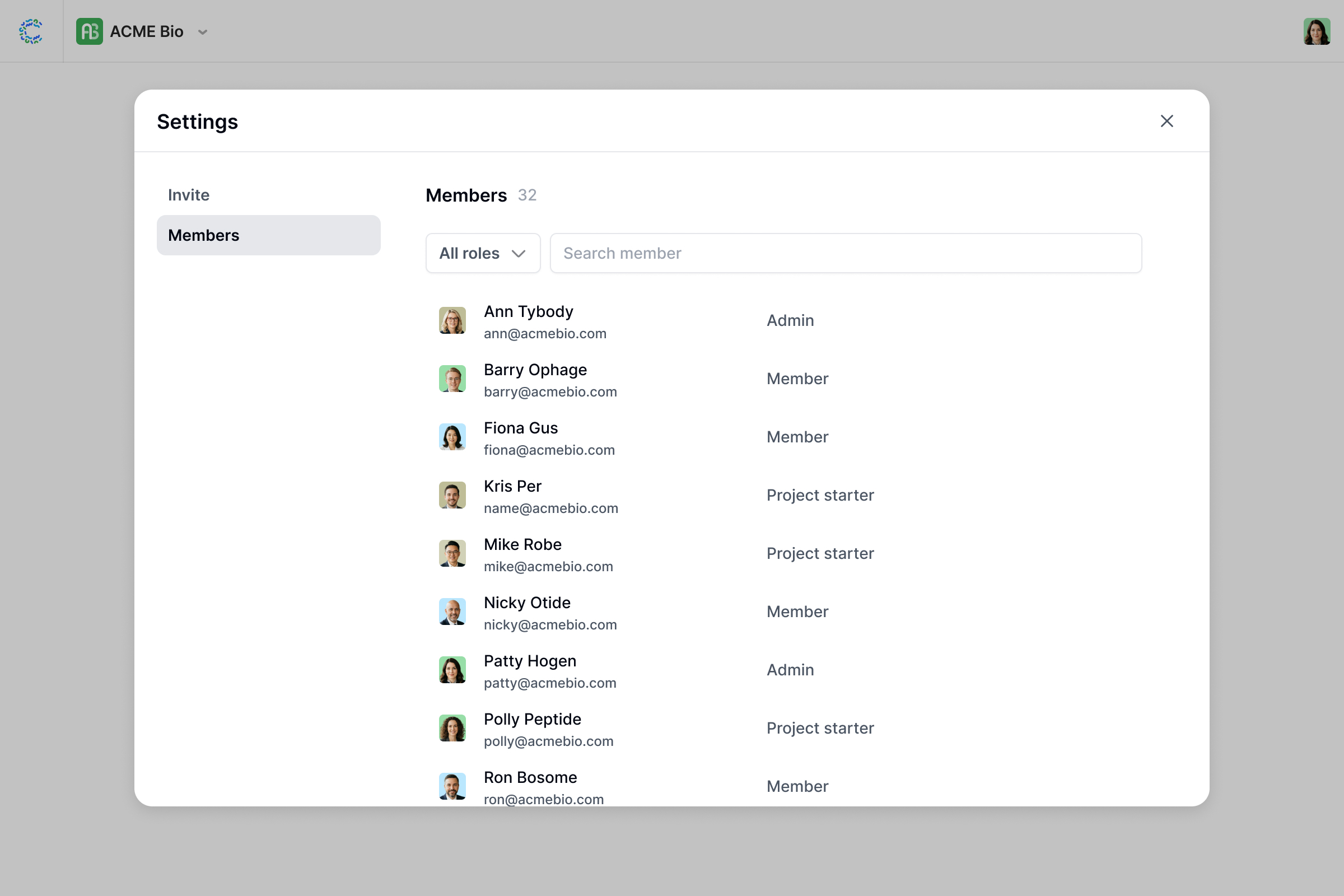
Assigning workspace roles
Workspace Admins can change a member's workspace role by navigating to Settings → Members and updating their role. Workspace Admins can assign the Project Starter role to members who need to create and administer projects.
Adding users to projects
Project Owners can add existing workspace members to their project and assign them a project role. To manage project access, click the Share button next to your profile in the top right corner. From there, a Project Owner can add members individually or set global access for all workspace members.
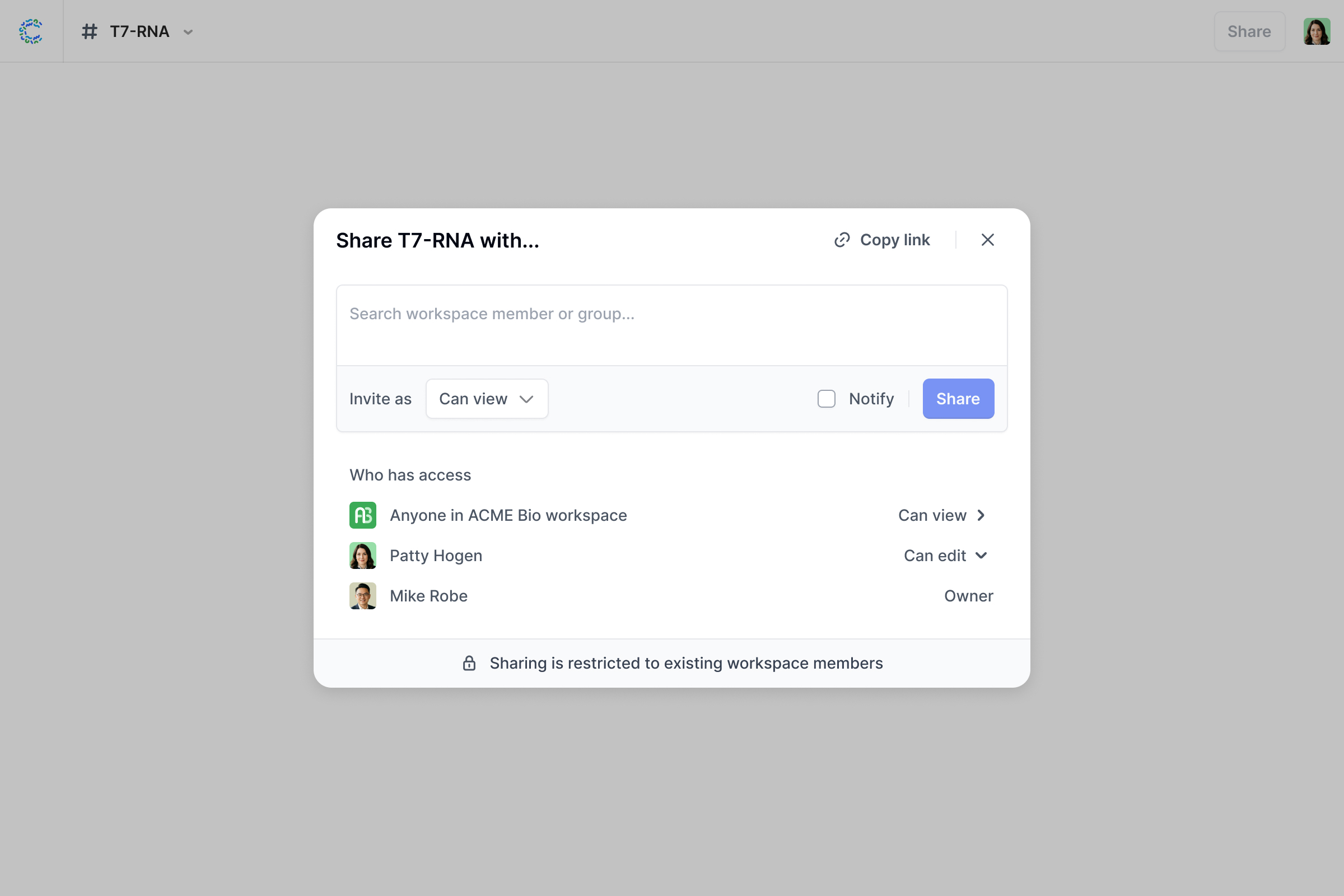
Removing users
When a Workspace Admin removes a user from the workspace, that user loses access to all projects within the workspace. Their project role assignments are also removed. If a user is removed from a specific project (but remains a workspace member), they lose access only to that project.
Permissions reference
The table below summarizes what each role can do across the workspace and within projects.
| Action | Workspace Admin | Project Starter | Project Owner¹ | Project Editor² | Project Viewer² |
|---|---|---|---|---|---|
| Invite/remove workspace members | ✓ | ||||
| Assign workspace roles | ✓ | ||||
| Edit workspace settings | ✓ | ||||
| Configure SSO and domains | ✓ | ||||
| Create and manage tables/views | ✓ | ||||
| Create and manage custom predictors | ✓ | ✓ | |||
| Create new projects | ✓ | ✓ | |||
| Archive projects | ✓ | ✓ | |||
| Edit project settings | ✓ | ✓ | |||
| Add/remove project members | ✓ | ✓ | ✓ | ||
| Run tasks | ✓ | ✓ | ✓ | ||
| Import and manage project data | ✓ | ✓ | ✓ | ||
| View project rounds and tasks | ✓ | ✓ | ✓ | ✓ | |
| View and query project data | ✓ | ✓ | ✓ | ✓ | |
| View project reports | ✓ | ✓ | ✓ | ✓ |
¹ Project Owners can only archive, edit, etc. their own projects. ² Project Editors and Viewers can only access projects they've been added to.
FAQ
Q. Can I have different roles on different projects?
Yes. Project roles are assigned independently per project. You might be a Project Owner on one project and a Project Viewer on another.
Q. What happens when I archive a project?
Access settings are preserved when a project is archived. If the project is later unarchived, the same members and roles will still be in place.
Q. Can I restrict a workspace member from seeing any projects?
Yes. Workspace members can only access projects they've been explicitly added to. If a user hasn't been assigned a project role, they won't see that project.
Q. Who can unarchive a project?
Unarchiving a project affects your active project slot count and can only be done by Cradle customer support. Contact your Customer Success manager to unarchive a project.
Q. Can I share a report with someone who doesn't have full project access?
Project Owners and Editors can grant the Project Viewer role to workspace members who just need to see reports and results without giving them edit access.